Keyboard
GDevelop gives access to all inputs made on the keyboard. This includes conditions to check if a key was pressed or released.
Any key pressed
For this condition, the corresponding action/s will be performed if any key on the keyboard is pressed.
Key pressed
Whenever the key selected while setting this condition is pressed, the corresponding actions are performed.
Key released
Whenever the key selected while setting this condition is released, the corresponding actions are performed.
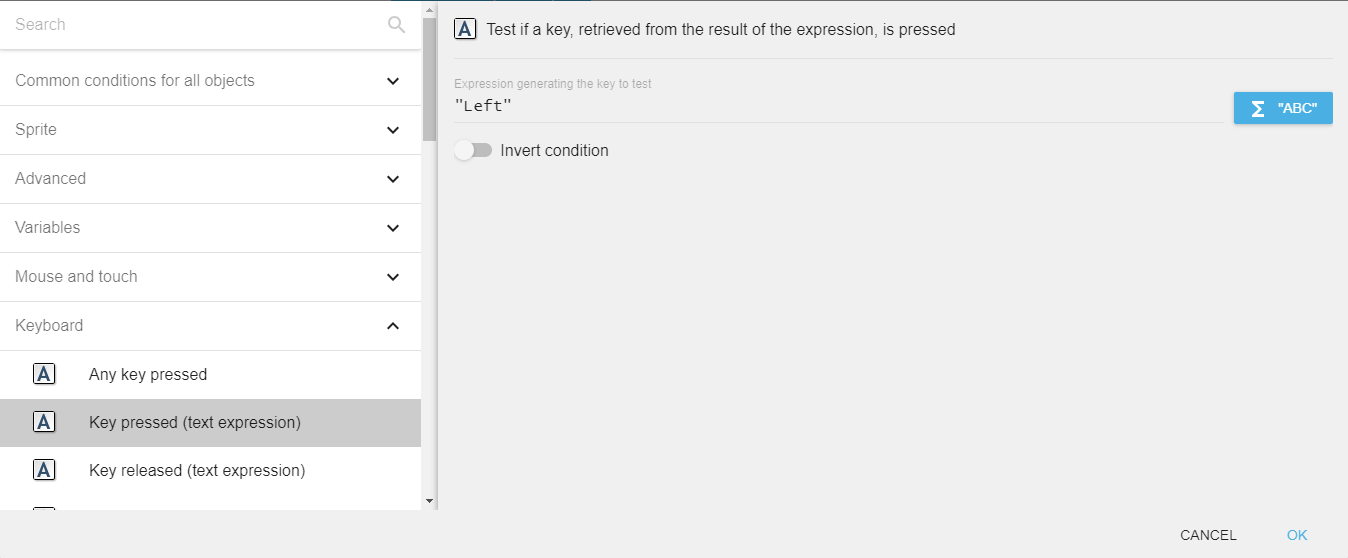
Key pressed (text expression)
To test a key press using this condition, you need to enter the key name in the form of text expression. For example, if you want to check condition for left arrow key press, you need to enter "Left" in the field.
Danger
Make sure that the key name is surrounded by quotes.
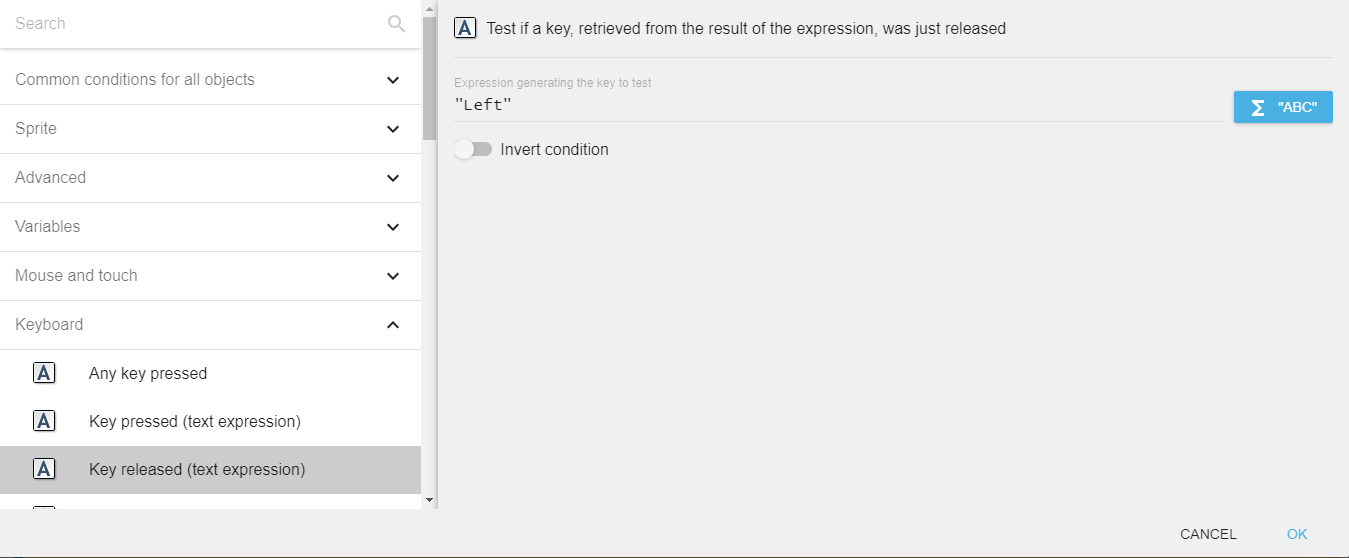
Key released (text expression)
To test a key release using this condition, you need to enter the key name in the form of text expression. For example, if you want to check condition for left arrow key release, you need to enter "Left" in the field.
Last key pressed
"Last key pressed" expression returns the last key press in the form of a string. For example, if the last key press is the left arrow key, the expression will return "Left".
Valid key names
The following key names can be used with the Key pressed (text expression) and Key released (text expression) conditions, as well as the Last key pressed expression.
Note
Key names are case-sensitive. Use exactly the names shown below (e.g. "LShift", not "lshift"). Letter keys use lowercase (e.g. "a", "z").
Letters
a b c d e f g h i j k l m n o p q r s t u v w x y z
Number row
Num0 Num1 Num2 Num3 Num4 Num5 Num6 Num7 Num8 Num9
Numpad digits
Numpad0 Numpad1 Numpad2 Numpad3 Numpad4 Numpad5 Numpad6 Numpad7 Numpad8 Numpad9
Arrow keys
Left Right Up Down
Numpad arrow variants: NumpadLeft NumpadRight NumpadUp NumpadDown
Function keys
F1 F2 F3 F4 F5 F6 F7 F8 F9 F10 F11 F12
Modifier keys
Left and right variants are distinguished so you can detect which side of the keyboard was used:
| Left | Right |
|---|---|
LShift |
RShift |
LControl |
RControl |
LAlt |
RAlt |
LSystem |
RSystem |
LSystem / RSystem corresponds to the Windows key on Windows, the Command (⌘) key on macOS, and the Super key on Linux.
Whitespace and control keys
Space Tab Return (Enter) Back (Backspace) Escape
Numpad Enter: NumpadReturn
Navigation keys
Home End PageUp PageDown Insert Delete Pause
Numpad navigation variants: NumpadHome NumpadEnd NumpadPageUp NumpadPageDown
Arithmetic and numpad operators
Add Subtract Multiply Divide
Numpad-specific variants: NumpadAdd NumpadSubtract NumpadMultiply NumpadDivide
Punctuation and symbols
| Name | Key |
|---|---|
SemiColon |
; |
Comma |
, |
Period |
. |
Quote |
' |
Slash |
/ |
BackSlash |
\ |
Equal |
= |
Dash |
- |
LBracket |
[ |
RBracket |
] |
Tilde |
` |
Menu |
Context menu key |
Reference
All actions, conditions and expressions are listed in the keyboard reference page.